
How this guide is organised
Start with Before you start if this is your first visit. If your account and workshop are already set up, use the Complete job workflow as the quickest route from a new booking to a paid invoice and proof pack. The remaining sections explain each workspace in more depth.
Access, sign-in and membership
Create your HoodHero account on the website, start your 7-day free trial and complete secure checkout before opening the Mechanic Desk.
What you need
- A HoodHero account with a Garage Pro Monthly or Annual membership, starting with a 7-day free trial.
- Access to the email, Google or Apple sign-in used for your HoodHero account.
- A modern desktop or tablet browser. Chrome, Edge, Safari and Firefox should be kept current.
- Internet access. Workshop records are cloud-backed; some local drafts remain in the current browser until saved.
Sign in for the first time
- Open app.hoodhero.co.uk.
- Sign in or choose the email Sign Up option to create your HoodHero account.
- Choose Garage Pro Monthly or Annual and complete the hosted Stripe checkout.
- Return to the browser and choose Check membership if the workspace does not open automatically.
- When access is confirmed, the Mechanic Desk opens on the Dashboard.
Important truth-in-workflow rules
HoodHero distinguishes a prepared action from a completed external action. For example, copying a message does not prove it was delivered, and a manual payment record does not mean a payment provider processed a charge. Check the status shown on the record before relying on it.
Find your way around the Mechanic Desk
On a wide screen, the main workspaces appear in a left sidebar. On a narrow browser window, use the menu button to open the same navigation in a drawer.
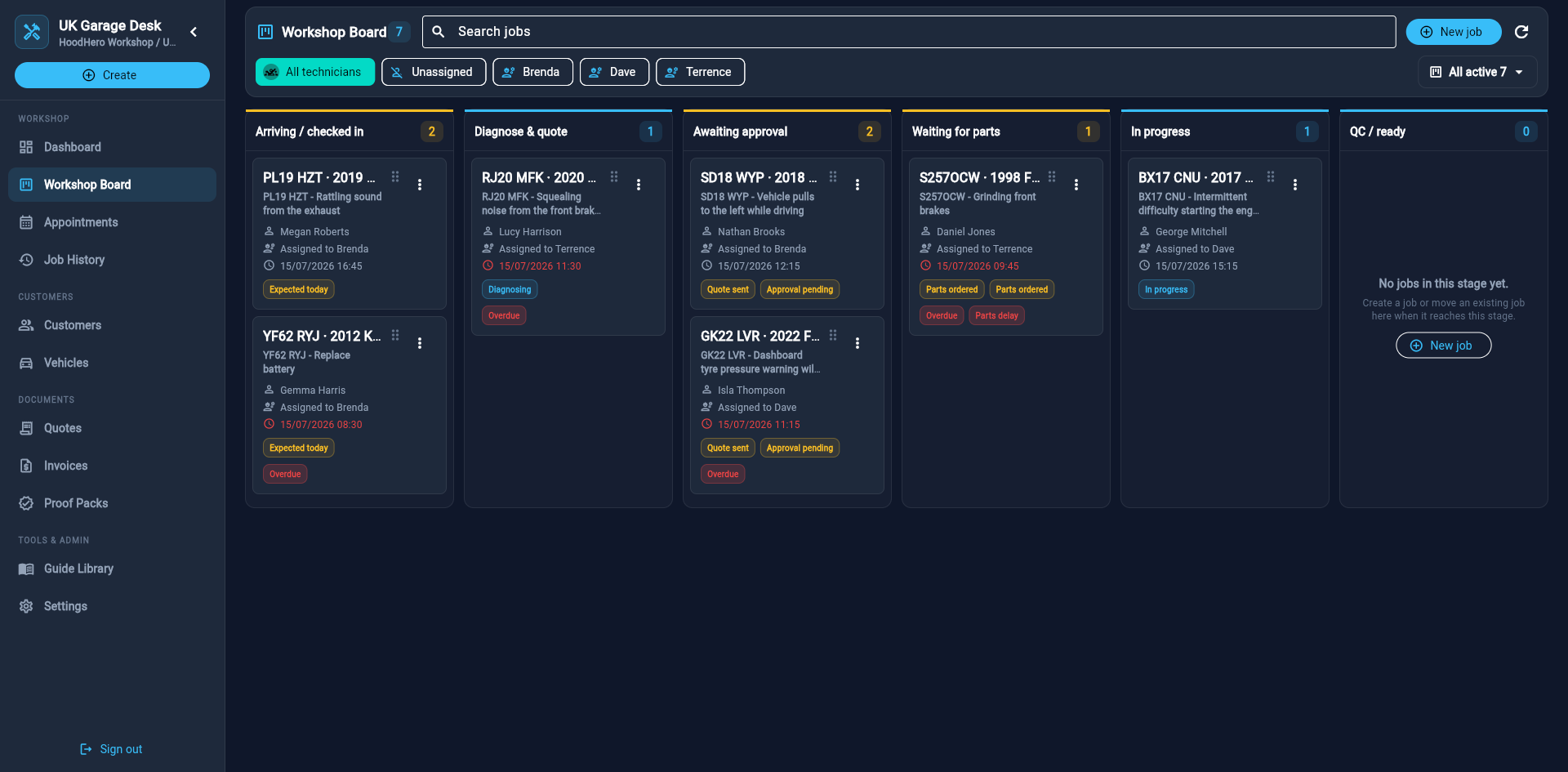
Dashboard
Your attention list, recent records, setup progress, quick actions and workshop report summary.
Workshop Board
Active jobs grouped by operational stage, with technician and attention filters.
Appointments
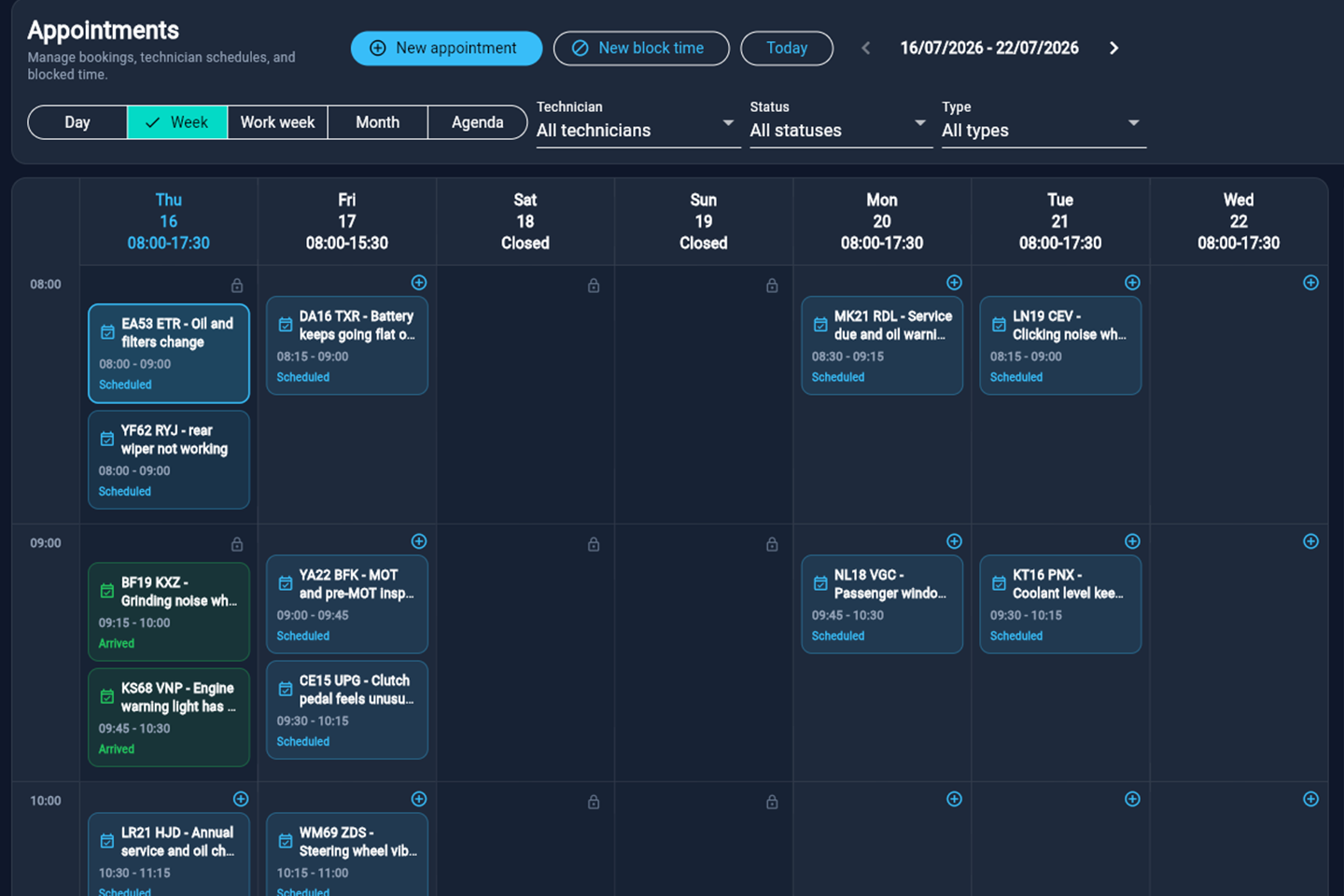
Day, week, work-week, month and agenda booking views, plus blocked time.
Job History
Completed, cancelled, no-show and archived work with date, status and search filters.
Customers
Customer details, contact actions, vehicles, work, documents, reminders and communications.
Vehicles
Vehicle details, ownership, lookup context, MOT advisories and linked workshop history.
Quotes
Draft, send, accept, decline, duplicate, edit, archive and PDF-preview workflows.
Invoices
Invoice lifecycle, payment records, payment messages, PDF preview and CSV export.
Accounting
Date-range invoice exports and accounting integration status.
Proof Packs
Saved and ready-to-create customer, warranty and internal proof documents.
Guide Library
Searchable repair guidance and vehicle-aware guide generation.
Settings
Business profile, team, workshop tools, local drafts, workspace controls and sign-out.
The Create button and top actions
Use Create in the sidebar, or the plus action in the compact top bar, to start common records without first opening their workspace. The adjacent workshop-tools and business-profile actions provide fast access to configuration.
Prepare the workshop before the first live job
A few minutes of setup improves booking availability, branded documents, technician assignment and reporting.
1. Complete the business profile
- Select the storefront/business-profile action in the header, or open Settings → Business profile.
- Enter the trading name, address, phone, email and any customer-facing business details.
- Add the logo that should appear on supported PDFs.
- Set the default currency, tax/VAT behaviour, invoice terms, payment instructions and document notes.
- Set normal workshop opening hours. Appointment capacity uses these hours when suggesting availability.
- Save, then preview a quote or invoice later to verify every public detail.
2. Add the team
- Open Settings → Team.
- Select Add team member.
- Enter the name, role and any optional contact or capacity information.
- Keep active the people who should appear in technician filters and assignment controls.
- Deactivate a person who should no longer take new work; existing historical assignments remain meaningful.
3. Review workshop tools and integrations
Open the hub/workshop-tools action. Review vehicle lookup, communication, payment, accounting, parts and labour providers. A provider may be shown as available, configured, connected, manual-only, unsupported or unavailable.
4. Create reusable labour and repair templates
Use labour templates for repeat line items such as diagnostic time, MOT preparation or common servicing work. Templates speed up jobs and documents, but applying one creates editable working data—it should not silently change the original template.
Run one job from booking to payment
This is the recommended first real-world journey. It creates a useful customer and vehicle history while exercising the core Mechanic Desk workflow.
A. Add the customer
- Open Customers and select Add customer.
- Enter the name and the contact details the workshop genuinely needs.
- Add useful notes, but keep private/internal detail out of customer-facing fields.
- Save and leave the customer record open for the vehicle.
B. Add and verify the vehicle
- From the customer record, choose Lookup vehicle, or open Vehicles → Add vehicle.
- Enter a UK registration or VIN where supported, then start the lookup.
- Review returned make, model, year, engine and available MOT details before saving.
- Correct any inaccurate or incomplete field. A lookup assists the record; it does not replace workshop verification.
- Confirm the customer is linked as the owner or contact for the vehicle.
C. Book the appointment
- Open Appointments and choose the view that best shows capacity.
- Select New appointment or the plus action inside an available time slot.
- Choose the customer and vehicle.
- Record the customer’s concern in their own words, plus appointment type, date, time and technician where known.
- Save and confirm the booking appears at the correct time with the intended status.
- When the work is accepted or the vehicle arrives, convert or carry the appointment into a job.
D. Control the job through the workshop
- Open the job from the appointment, Dashboard or Workshop Board.
- Assign the responsible technician and confirm the expected time.
- Move the status to the stage that describes the real situation—never to the stage you hope it has reached.
- Add findings, internal notes, checklist items, tracked parts and proof evidence as the work progresses.
- Use Jax or the Guide Library when useful, review the result and save only accurate, workshop-approved content.
- Use the activity timeline to confirm handoffs and important changes are recorded.
E. Quote and get approval
- Select Create quote from the job.
- Add labour, parts, fees, quantities, unit values, discount and VAT/tax as applicable.
- Check the customer, vehicle, expiry date, notes and totals.
- Preview the PDF and verify the business branding and page layout.
- Mark the quote sent only after completing the customer handoff.
- When the customer confirms, record Accepted or Declined truthfully. Use the customer message tools to prepare an editable record of communication.
F. Complete, prove, invoice and record payment
- Move the job through parts and in-progress stages, keeping notes and proof current.
- Complete quality control and move the job to QC / ready when it is genuinely ready for handover.
- Create the invoice from the accepted quote where possible, then verify line items and totals.
- Preview/download the invoice PDF and hand it to the customer through the chosen channel.
- Record payment method, reference, date and note only when payment has actually been confirmed.
- Create the appropriate proof-pack variant and preview it before sharing.
- Mark the job complete. Confirm it leaves active work and appears in Job History.
- If follow-up work is expected, create a service reminder or repeat job from the completed record.
Build a useful customer history
The customer record is the front-desk view of vehicles, work, documents, reminders and communication.
Everyday customer actions
- Search by customer name or saved contact detail, then select a result.
- Use Call and Email actions only after verifying the displayed destination.
- Create a new job, quote, invoice or reminder with customer context already carried across.
- Review linked vehicles, active and historical jobs, quotes, invoices and communications before answering a status question.
- Archive or delete only after reading the confirmation. Historical linked records may need to remain for an accurate business trail.
Customer messages and communication history
Message templates help prepare status, approval, payment and handover communication. Edit every draft. Copying, opening email or opening SMS is a handoff—not proof of delivery. The communication history records what HoodHero actually knows about the action.
Keep vehicle intelligence attached to the right work
Vehicle records combine entered details, supported lookup data and workshop history. Always verify safety-critical specifications independently.
Registration and VIN lookup
- Open a vehicle or start Add vehicle.
- Enter the registration without relying on punctuation or spacing, or enter a valid 17-character VIN.
- Choose lookup/refresh and wait for the review screen.
- Compare the result with the physical vehicle and existing record.
- Save only after reviewing. If refresh fails, do not overwrite good existing data with blank fields.
MOT and advisory context
Where DVSA information is available, inspect test dates, mileage and advisories. An advisory can inform or be linked to a workshop job, but it is not automatically resolved merely because work happened. Mark resolution deliberately and preserve the evidence.
Plan realistic workshop capacity
Appointments combine bookings, technician schedules and blocked time. Choose the calendar view that answers the question you have.
- Day
- Useful for precise timing and front-desk control today.
- Week
- A seven-day view of bookings and available workshop hours.
- Work week
- Focuses on configured working days and workshop availability.
- Month
- Useful for broad capacity and future booking patterns.
- Agenda
- A compact chronological list, useful on narrower screens.
Block unavailable time
Use block time for holidays, training, equipment downtime or any period that should not accept ordinary bookings. Give the block a clear label so another team member understands the constraint.
Make the real workshop state visible
The board groups active jobs by operational stage. Cards also surface customer, vehicle, technician, timing and attention signals.
- Arriving / checked in
- The booking has become live workshop work or the vehicle has arrived.
- Diagnose & quote
- Findings and the recommended work are being established.
- Awaiting approval
- The next action belongs with customer approval.
- Waiting for parts
- The job is constrained by required parts or supply timing.
- In progress
- Approved work is actively being carried out.
- QC / ready
- The work is complete enough for quality control, invoice or handover.
Filters and quick actions
Filter all active work by technician or unassigned status, and use attention views for today, approvals, parts, ready-to-invoice, MOT advisories or delayed parts. Open the card for the full record; use quick actions only when the visible context is sufficient.
Use the job as the shared source of truth
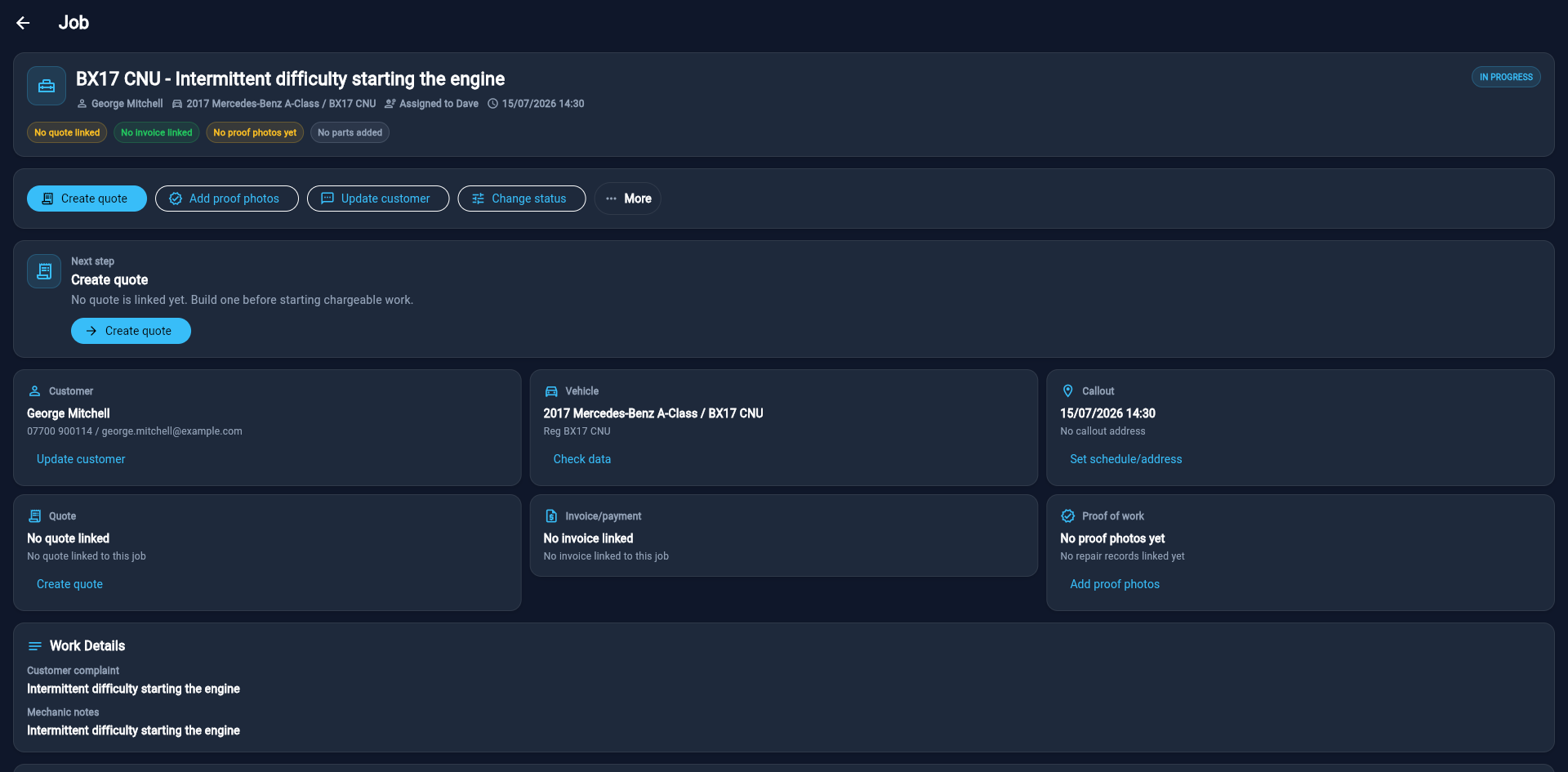
A job connects the customer complaint to the people, vehicle, findings, commercial documents, evidence and final outcome.
What to maintain on the job
- Complaint and work details: preserve what the customer reported separately from confirmed findings.
- Status and timing: show the real stage and expected schedule.
- Technician: assign clear ownership; reassign when responsibility changes.
- Internal notes: keep operational detail internal and pin the most important note when supported.
- Checklist: break the work into reviewable items and update completion deliberately.
- Parts: record requirements and current supply/fitting status.
- Proof: add relevant, labelled evidence rather than an unstructured photo dump.
- Documents: link quotes, invoices and proof packs instead of creating unrelated records.
- Activity timeline: use it to understand what changed and when.
Internal versus customer-facing information
Internal notes, margins, private supplier detail and internal-only events must remain outside customer documents and messages. Preview every PDF and edit every generated draft before external use.
Create a clear approval trail
A quote can start from a job or independently. Linking it to the job is preferred because the customer, vehicle and approval remain connected to the work.
- Choose Create quote from the job, or Quotes → New quote.
- Select or confirm the customer, job and vehicle context.
- Add labour, part and fee lines with clear descriptions, quantities and unit values.
- Apply discount and VAT/tax only as intended; verify subtotal, tax and total.
- Add expiry, notes and customer-facing terms.
- Save the draft. A local draft indicator means the current browser may hold work that has not yet reached the shared cloud record.
- Preview the PDF and correct branding, contact details, line wrapping or page breaks.
- Complete the real customer handoff, then update the quote status to Sent.
- Record Accepted or Declined only after the customer response is known.
Invoice accurately and record what actually happened
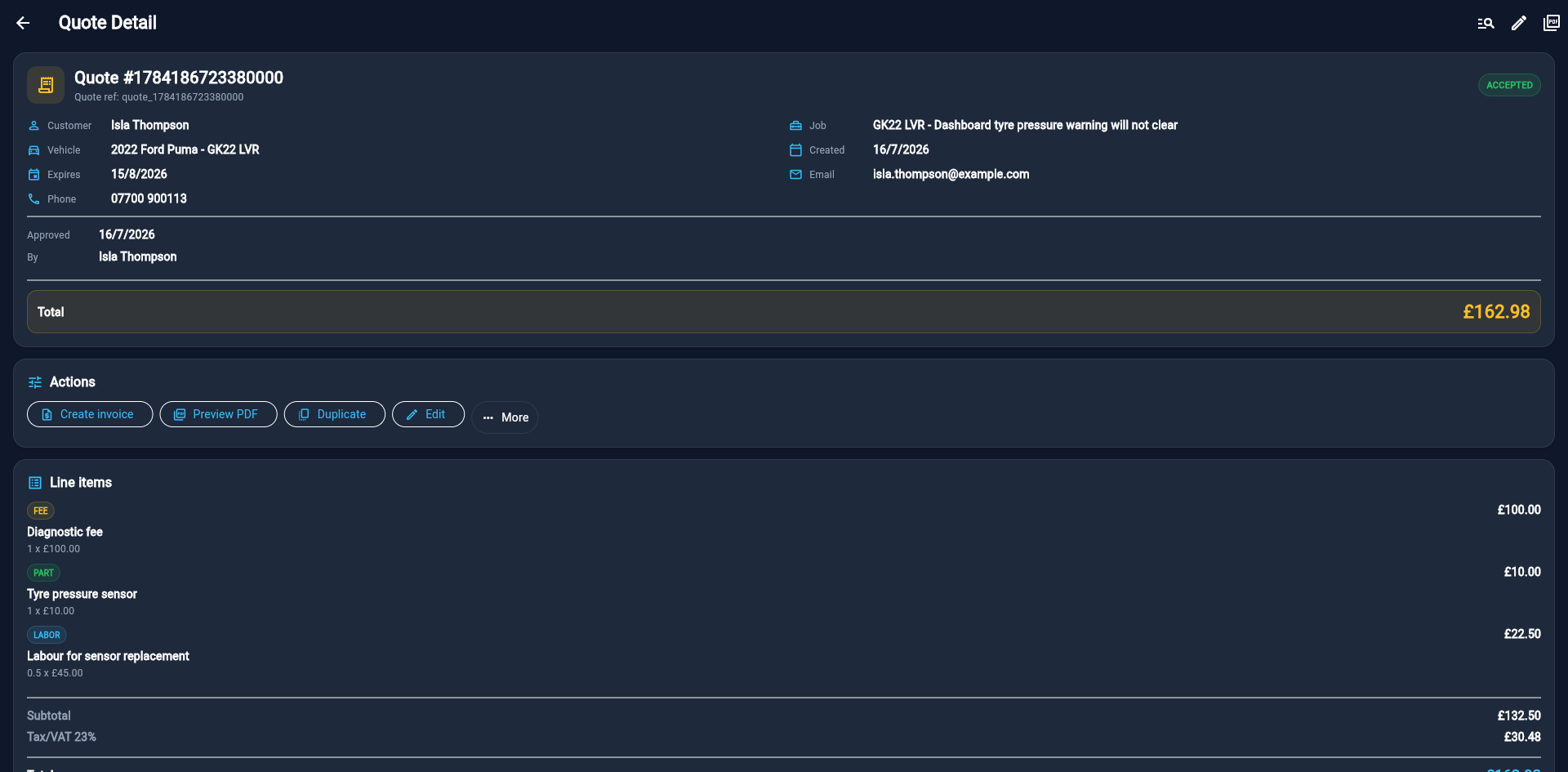
Create the invoice from an accepted quote where possible, or start one manually when the work has no quote.
- Open the accepted quote and select Create invoice, or use Invoices → New invoice.
- Review every line, total, customer detail, date and due date before saving.
- Preview/download the PDF and complete the chosen customer handoff.
- Update the status to Sent only when it has been handed off.
- Use Payment message to prepare an editable request; copy or open the chosen channel and finish the action outside HoodHero where required.
- Use Record paid after payment is confirmed. Save method/provider label, reference, note and date when useful.
- If a payment was recorded incorrectly, mark unpaid or correct the record while preserving an honest trail.
Turn evidence into a professional handover
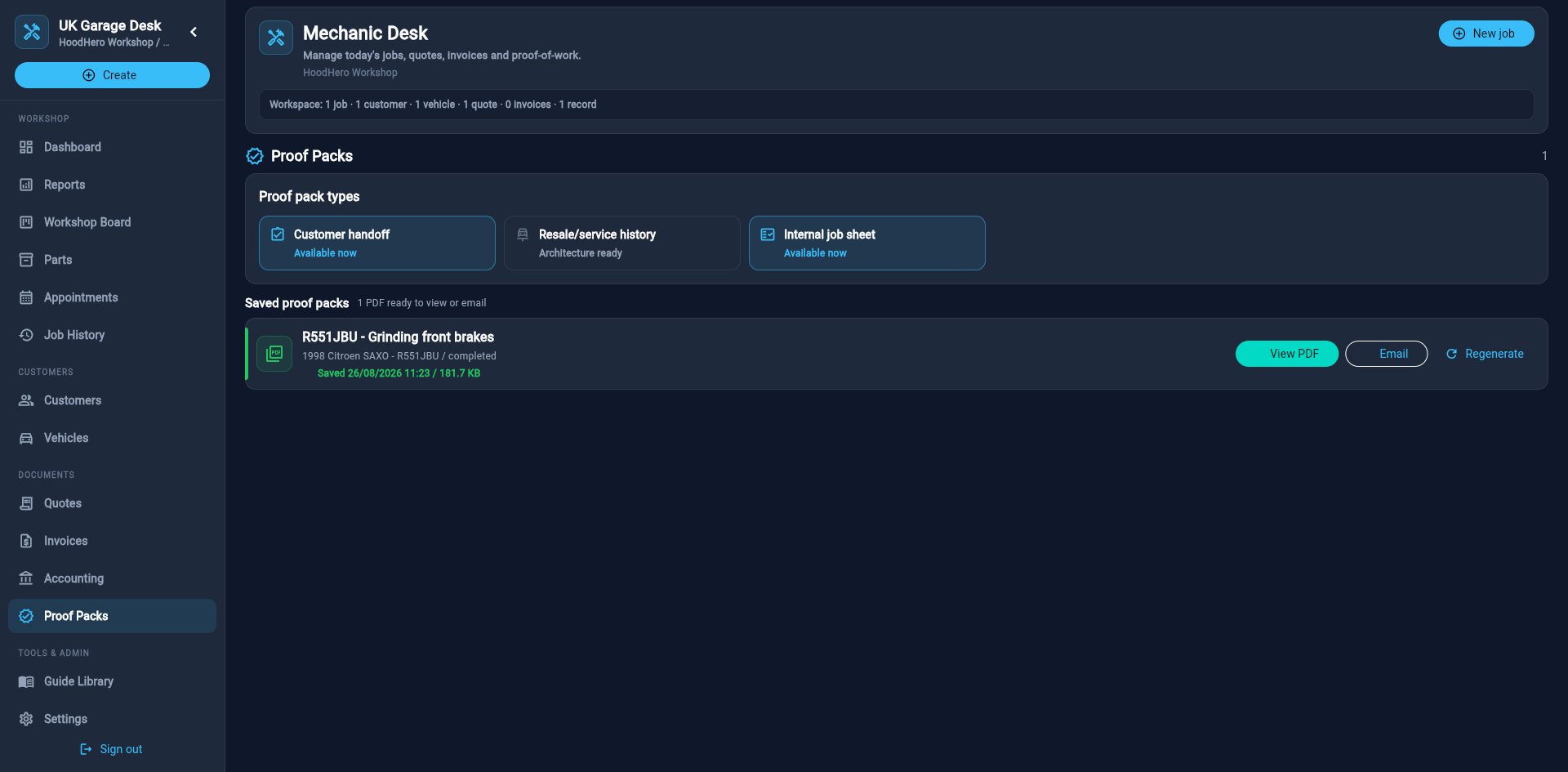
Proof Packs collect selected workshop evidence and context into a PDF. Choose the variant for the audience.
- Customer handover
- A clear external record of the vehicle, job and selected evidence.
- Warranty evidence
- A more evidence-focused pack for supporting a warranty-related record.
- Internal record
- A workshop-focused pack that may include operational detail not intended for customers.
Create and share a proof pack
- Add properly labelled proof photos and completion evidence to the linked job or repair record.
- Open Proof Packs or use the proof action on the job.
- Choose the correct repair record and pack variant.
- Preview the PDF. Verify customer, vehicle, dates, business branding, image selection and any signature.
- Confirm internal notes, margins, secrets and unselected technical data are absent from external variants.
- Download or prepare the email handoff. Confirm the actual customer delivery outside HoodHero where appropriate.
Move clean operational data into business review
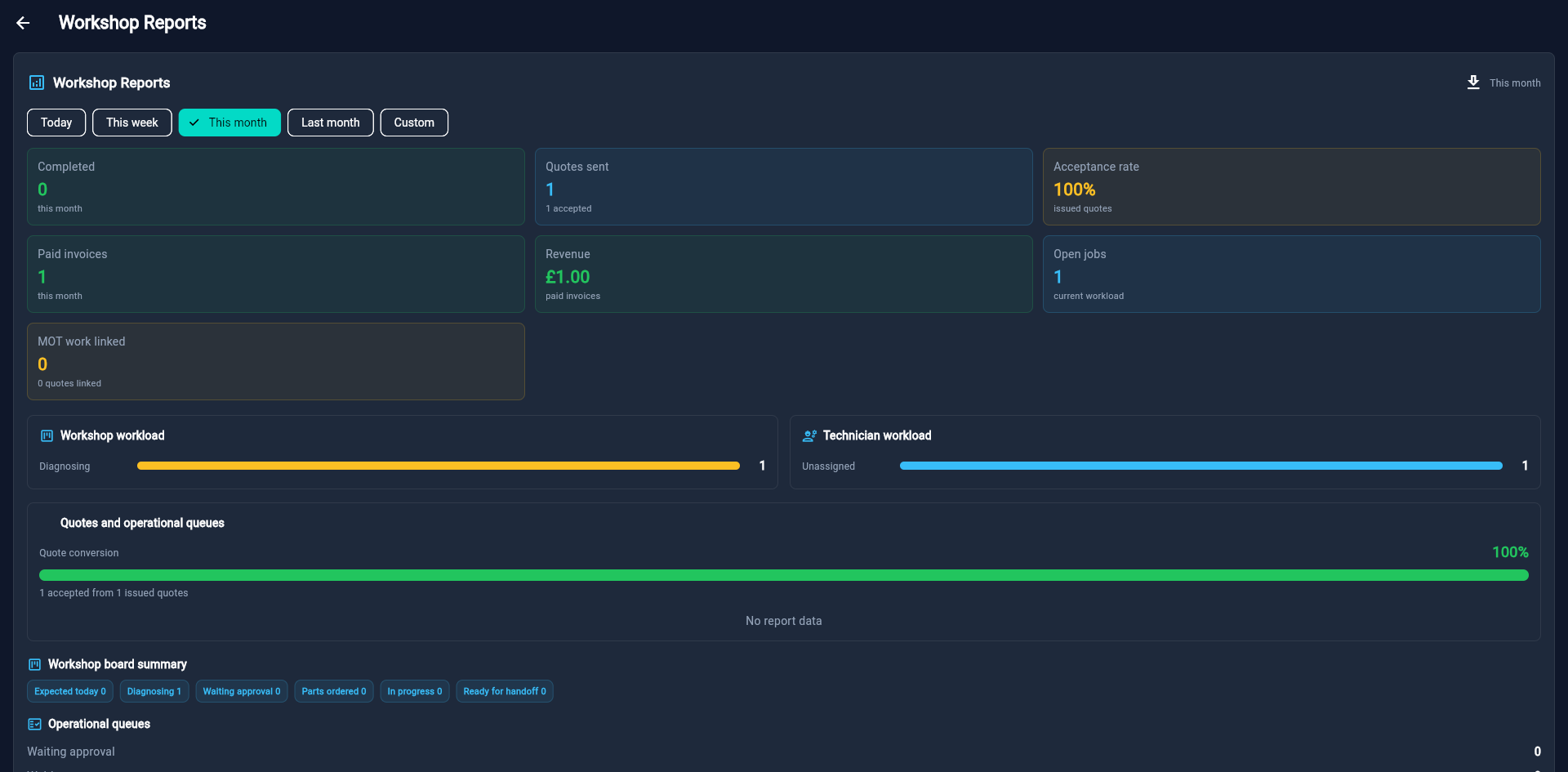
The reports explain current workshop state. Accounting export moves selected invoice data into a CSV; it does not replace bookkeeping or tax review.
Use dashboard reports
- Choose the report period and confirm the displayed currency.
- Review active jobs, approvals, parts delays, unassigned work, invoice status and profitability context.
- Select a count or action row to open the supporting records rather than relying on the summary alone.
- Resolve incorrect figures by correcting source jobs, documents or payment status.
Export accounting CSV
- Open Accounting, or choose Export CSV from Invoices.
- Select the date range and export type/provider format offered by the screen.
- Review the included fields and generate the file.
- Open the CSV in Excel, Google Sheets or the receiving accounting workflow.
- Verify invoice numbers, customer names, dates, totals, tax, currency and payment status before importing or reconciling.
Use Jax as a reviewed workflow assistant
AI output should accelerate a qualified human decision, not silently become a factual workshop record.
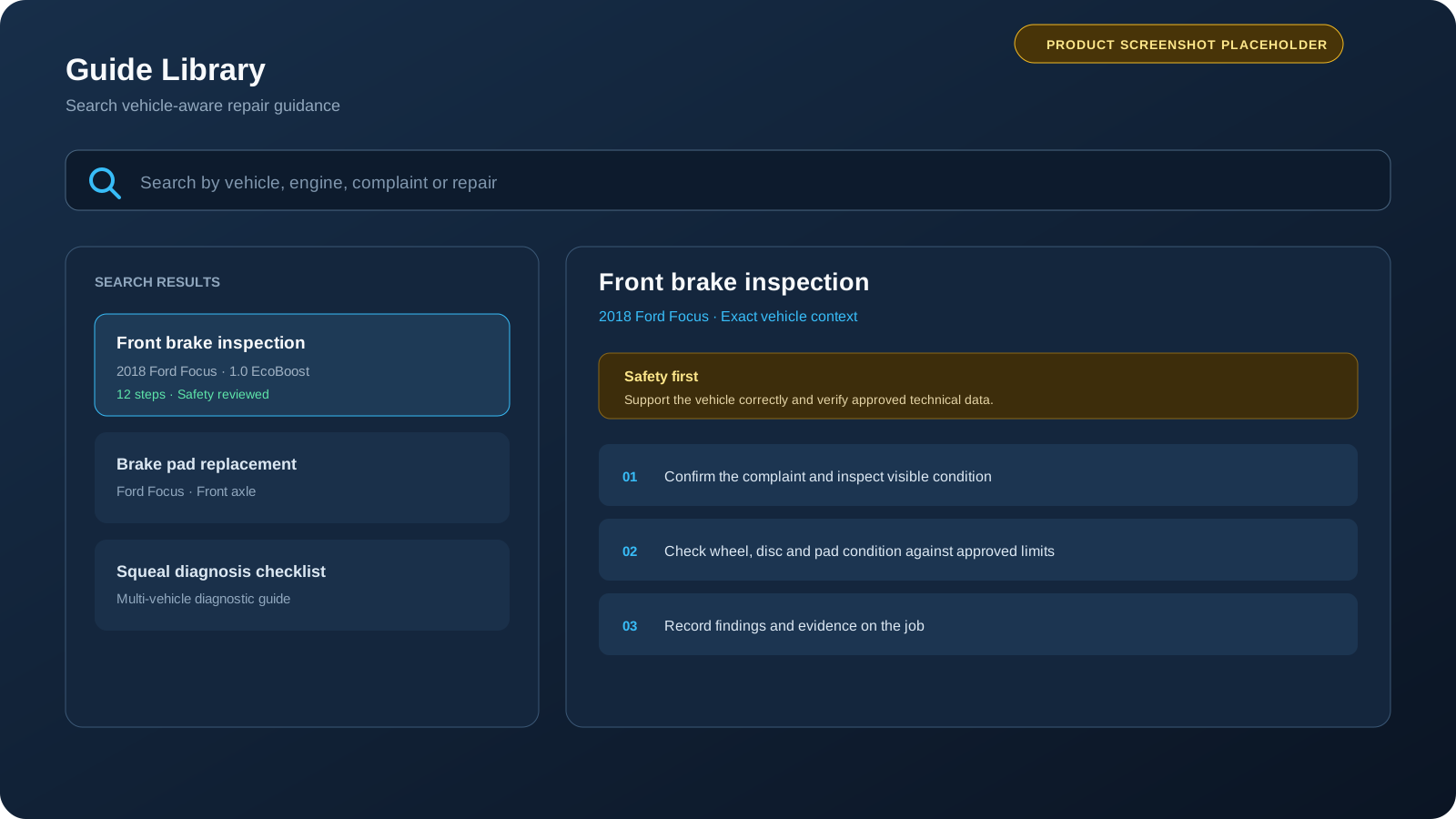
Search or generate repair guidance
- Open Guide Library.
- Search by vehicle, engine, complaint, repair or known terminology.
- Open a suitable saved guide, or start generation with the exact vehicle and job context.
- Review tools, steps, safety warnings and any uncertain values.
- Edit or reject incorrect content. Verify exact torque, part, fluid and procedural data independently.
- Save once, then link useful checklist or guidance context to the job where supported.
Workflow AI assistance
AI actions can draft job notes, summaries, quote/invoice descriptions and customer messages using the context already present. Review for accuracy, tone, privacy and promises. Never allow a generated draft to claim an inspection, completed repair, delivered message, exact part or successful provider action that the workshop has not verified.
Maintain the workspace without losing the record
Settings contains business, team and provider configuration alongside browser-local and workspace data controls.
- Business profile
- Customer-facing identity, contact details, logo, document and payment defaults, hours and related settings.
- Team
- Create, edit, activate, deactivate and remove team members; use active members for job assignment.
- Workshop tools
- Review real provider availability, configuration and connection state.
- Local drafts
- Inspect or clear browser-held quote/invoice drafts only after confirming they are no longer needed.
- Reset view
- Returns workspace filters or presentation state to defaults without implying business records were deleted.
- Delete data
- Destructive workspace controls. Read the target and confirmation carefully before continuing.
Carry the same job into the field
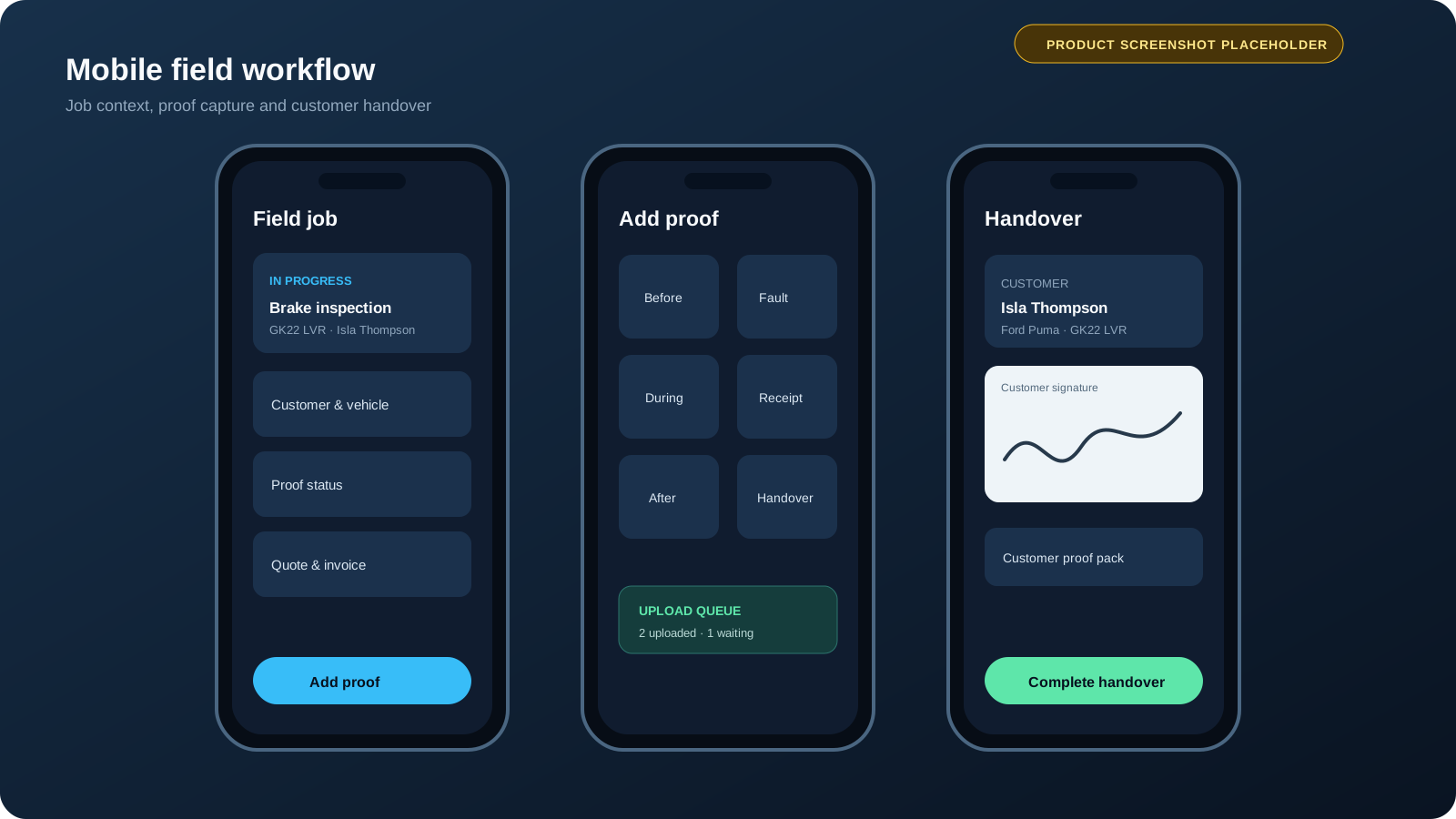
The browser is strongest for desk control. The HoodHero mobile app adds field-oriented actions while preserving the same customer, vehicle and job context.
- Open the active field job with customer, vehicle, callout, appointment and document context.
- Use the mobile diary for today, tomorrow, this week and later.
- Capture before, fault, during, odometer, registration, parts/receipt, after, completion and handover proof categories.
- Capture a customer handover signature where appropriate and consented.
- Queue proof uploads when the connection is poor, then confirm they finish after connectivity returns.
- Prepare customer messages and payment requests, while preserving the difference between drafted, opened and actually delivered.
Common problems and safe recovery
- Cannot sign in
- Allow the sign-in pop-up, retry the same provider, check browser privacy settings and confirm you are using the HoodHero account connected to your web membership.
- Membership not detected
- Confirm the same HoodHero account was used for checkout, then choose Check membership.
- Data looks stale
- Use the page refresh action or pull-to-refresh where present. Avoid repeated saves while the network is unstable.
- Vehicle lookup failed
- Check registration/VIN formatting and provider configuration. Preserve existing good data; failed lookup should not be treated as a blank result.
- PDF did not download
- Allow downloads/pop-ups for the app, retry preview, and check the browser downloads panel.
- Message status is unclear
- Open communication history. A copied or opened draft does not verify delivery; confirm through the real channel.
- Local draft warning
- Open the draft in the same browser, finish or deliberately discard it. Do not clear local drafts until required content is saved elsewhere.
- Totals look wrong
- Review line quantities, unit prices, discounts, VAT/tax, currency and document status before editing any report summary.
Get support
When contacting support@hoodhero.co.uk, include the workspace area, approximate time, browser/device, what you expected, what happened and a screenshot with customer personal information redacted where possible. Never send passwords, OAuth codes, API keys or payment-card data.
Privacy and customer data
- Collect only the customer and vehicle information needed for the workshop relationship.
- Use internal notes for internal operations, and verify they remain out of external messages and PDFs.
- Obtain appropriate consent for proof photos, signatures and customer communication.
- Sign out on shared devices and keep the browser/operating system updated.
- Use workspace deletion tools cautiously and follow the workshop’s legal record-retention obligations.